A college laptop with integrated graphics was not built for games, but it can still run plenty of them well. The trick is to remove every small handicap before you blame the hardware: wrong power settings, old drivers, dust-choked vents and graphics options set far too high. This guide to low end laptop gaming goes through those fixes in the order that usually helps most, then looks at lighter games and cloud gaming services that are officially available in India.
Before you start, it helps to know what you are measuring. Our explainer on FPS, refresh rate and ping covers the numbers to watch. Windows menu names below are from Windows 11 at the time of writing; Windows 10 uses similar settings in slightly different places.
Low end laptop gaming starts with power
Most laptops save power aggressively on battery, and that often means lower clock speeds. So the first rule is simple: play plugged in. Then tell Windows you want speed rather than battery life.
- Open Settings → System → Power & battery.
- Under Power mode, choose Best performance. Windows lets you set separate modes for Plugged in and On battery, so set the plugged-in one.
- If the option is greyed out, Microsoft says a custom power plan may be selected. Open Control Panel → Power Options, pick Balanced, and try again.
Many laptop makers also ship their own control app with performance or fan profiles. If yours has one, check it as well, because it can override what Windows asks for.
Game Mode and choosing the right graphics chip
Game Mode is on by default in Windows 11, but it is worth confirming under Settings → Gaming → Game Mode. According to Xbox Support, it gives the game priority over background activity and stops Windows Update from installing drivers or showing restart prompts while you play. Results vary by game and PC, so treat it as a small help, not a miracle.
If your laptop has both integrated graphics and a separate NVIDIA or AMD chip, make sure the game uses the stronger one. Go to Settings → System → Display → Graphics, find the game, open its options and choose High performance. This option only appears on machines with more than one GPU.
Drivers, updates and background apps
- Graphics drivers: install the latest from Intel, AMD or NVIDIA, or from your laptop maker’s support page. New drivers often fix stutter in recent games, and some games, Valorant among them, require current drivers.
- Windows Update: finish pending updates before a gaming session, not during one.
- Startup apps: in Task Manager, disable launchers and chat apps you don’t need running all the time.
- Storage: keep some free space on the drive the game is installed on; a nearly full drive slows everything down.
Cooling: the fix most people skip
When a laptop gets too hot, it slows itself down to protect the chips. That is why a game can run fine for ten minutes and then start stuttering. In an Indian summer, without air conditioning, this happens sooner.
- Play on a hard, flat surface. A bed, pillow or lap blocks the air intake underneath.
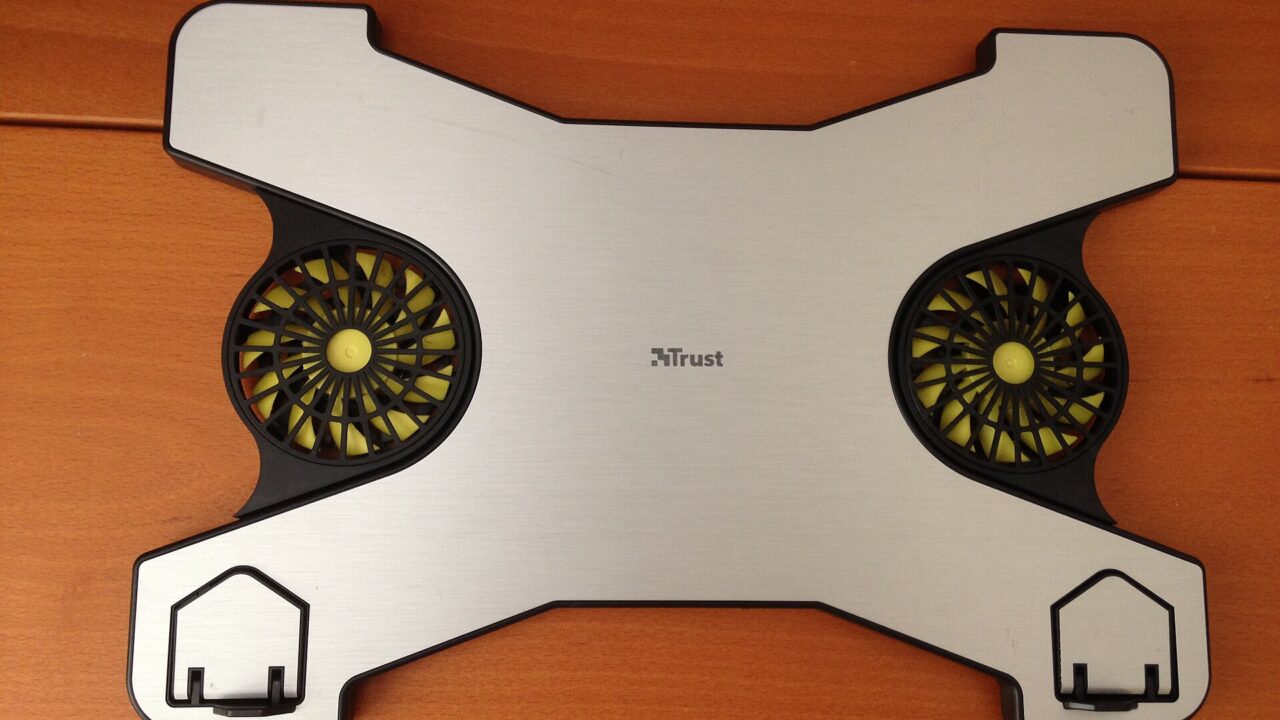
- Raise the back slightly or use a cooling stand so air can reach the vents.
- Clean dust from the vents with short bursts of air. Opening the laptop is a job for the service centre, especially under warranty.
- Keep the charger connected, but avoid playing in direct sunlight or a closed, hot room.
In-game settings that give the most FPS
Not every setting costs the same. In our experience, these give the biggest gains for low end laptop gaming, roughly in this order:
| Setting | What to try | Why it helps |
|---|---|---|
| Resolution or render scale | 720p, or 70–85% render scale | Fewer pixels for the GPU to draw |
| Shadows | Low or off | Often one of the heaviest options |
| Anti-aliasing and post-processing | Low or a cheap mode | Saves GPU time with little visible loss |
| Textures | Match your video memory | Too high causes stutter on shared memory |
| Frame rate cap | Cap at a level you can hold | Steadier frames and less heat |
| V-sync | Off if input feels slow | Can add delay on weak hardware |
Upscaling with AMD FSR
If a game offers AMD FidelityFX Super Resolution (FSR), try it before you drop the resolution by hand. The game renders at a lower resolution and FSR upscales the picture, which usually looks cleaner than plain low resolution. AMD’s GPUOpen page says FSR 1 is open source and runs on a wide range of GPUs, including NVIDIA cards, so you don’t need an AMD chip for it. Some newer FSR features, such as frame generation, are tied to recent Radeon cards. Use the Quality or Balanced preset first; Performance mode can look soft on a small screen.
Lighter games and cloud gaming in India
Some games are simply easier to run. Before you download, compare your laptop with the game’s published minimum specs. For example, Riot lists Intel HD 4000 graphics as the minimum for Valorant at 30 fps. Our list of the best free PC games includes several that suit modest hardware, and Google Play Games on PC lets you try Android titles on a laptop.
Cloud gaming moves the heavy work to a remote server, and your laptop only plays a video stream. Two big services are officially available in India at the time of writing:
| Service | Status in India | What to know |
|---|---|---|
| NVIDIA GeForce NOW | Out of early access and fully launched in July 2026 | Free tier with ads and one-hour sessions; paid Performance and Ultimate tiers |
| Xbox Cloud Gaming | Added India in November 2025 | Needs an Xbox Game Pass plan; monthly hour limits apply |
Prices, game lists and hour limits change, so check each service’s official site before paying. Cloud play needs a stable, low-latency connection; Wi-Fi close to the router or a wired cable works best. Also note that Riot states Valorant does not support cloud gaming, so it has to run on the laptop itself.
Tip: Never download “lite” or cracked versions of paid games to make them run better. They are illegal and a common way to get malware.
A five-minute checklist before each session
- Charger connected and Power mode on Best performance?
- Browser tabs, downloads and unneeded apps closed?
- Laptop on a hard surface with the vents clear?
- On a dual-GPU laptop, is the game set to the High performance GPU?
- In the game, is the frame cap, resolution or FSR preset set sensibly?
If all five are right and the frame rate is still poor, the game may simply be too heavy for your hardware. Lower the settings further, pick a lighter game, or try cloud gaming.
Work through these steps one at a time and check your frame rate after each change, so you know what actually helped. Done patiently, low end laptop gaming can be far smoother than the first launch suggests, and you will learn your machine’s limits along the way.
Frequently asked questions
Does playing plugged in really make a difference?
On most laptops, yes. Battery operation often limits speed. Plug in and set Power mode to Best performance for the plugged-in state in Windows settings.
Does FSR work on Intel or NVIDIA graphics?
AMD says FSR 1 is open source and runs on a wide range of GPUs, including NVIDIA cards. The game itself must support FSR. Some newer FSR features need recent Radeon cards.
Is cloud gaming a good option on a weak laptop?
It can be, if your internet is fast and stable. GeForce NOW and Xbox Cloud Gaming are both available in India at the time of writing, with different plans and limits.
Will a cooling pad increase FPS?
It does not add power, but it can stop the laptop from slowing itself down when it gets hot, so frame rates stay steadier in long sessions.