Few things are more annoying than a game update that stops halfway because your phone is full. The good news is that you can free up phone storage for games using tools already built into Android and Google’s own free apps, without losing your saved progress, photos or chats. This guide goes from the safest steps to the ones that need a little care.
Menu names vary a little between phone brands and Android versions. The steps here follow Google’s help pages at the time of writing; if your phone looks different, check your manufacturer’s help pages.
Why big games need more space than they show
The size listed on the Play Store is often just the starting point. Many large games download extra data such as maps, characters and sound the first time you open them, and every season update adds a bit more. Replays, screenshots and cache files also grow quietly over time.
Updates need breathing room as well. The phone downloads the new files first and then installs them, so for a while it needs more space than the game’s final size. It is good practice to keep a healthy margin free beyond the size of your biggest game; otherwise an update may fail to install.
Step 1: See what is using space in Settings → Storage
- Open the Settings app and tap Storage.
- Tap a category such as Apps, Images or Videos to see what is taking the most room.
- Under Storage → Free up space you can pick files by category and move them to Trash. Some of these options only work on Android 14 and later.
- In the same area you can turn on Smart Storage, which clears the phone copies of photos and videos that are already backed up when storage runs low.
Step 2: Use Files by Google to free up phone storage for games
Google’s free Files by Google app gathers the main clean-up jobs in one place. Open it and tap Menu → Clean to see a set of cards. The most useful ones are below.
| Card | What it does | Watch out for |
|---|---|---|
| Junk files | Clears temporary files that apps save | Doesn’t change app settings, but the deletion is permanent |
| Duplicate files | Shows copies of the same file | Keep the one marked ‘Original’ |
| Delete WhatsApp media | Lists photos and videos from WhatsApp | Check for documents you still need |
| Large files | Finds the biggest files on the phone | Old screen recordings usually show up here |
| Unused apps | Lists apps you haven’t opened in a while | Check your game progress before removing one |
Files you select go to the app’s Trash, where they stay for 30 days before they are deleted automatically. If you need the space right now, empty the Trash as well.
Tip: If you record gameplay, old screen recordings are often the biggest files on your phone. Move them to a PC once you’ve edited them. Our guide on how to record gameplay for YouTube covers recording settings and file sizes.
Step 3: Clear cache, not data (unless you are sure)
Go to Settings → Apps, choose an app and open its Storage section. You will see two buttons, and they do very different things.
- Clear cache removes temporary data only. The app may be a little slower the next time it opens, and that’s all.
- Clear storage (called Clear data on some phones) erases all of the app’s data. For a game, that means your login, settings and downloaded extra data. If your progress is saved only on the phone, it goes too.
Before you ever clear a game’s data, open the game’s settings and check that it is linked to an account, such as Google Play Games or the game’s own login, and that it saves to the cloud. If you’re not sure, stick to clearing the cache.
Step 4: Let Google Play archive games you rarely play
Archiving is a middle ground between keeping a game and uninstalling it. According to Google’s help page, archiving removes the app but keeps your personal data, and the icon stays on your home screen. Tap the icon and the app reinstalls, as long as it is still available on Google Play.
- To turn on automatic archiving: Play Store → your profile picture → Settings → General → Automatically archive apps.
- If an install fails because there isn’t enough space, the Play Store offers to archive apps for you.
- On Android 15 and later, you can also archive apps manually.
WhatsApp media, photo backups and SD cards
WhatsApp and duplicate photos
Group chat videos and forwarded images add up to gigabytes without you noticing. The Delete WhatsApp media and Duplicate files cards in Files by Google let you review and remove them in one place.
Back up with Google Photos, then remove phone copies
Once your photos and videos are backed up in Google Photos, you can delete the copies on your phone. Use the Free up space option, or ‘Delete from device’ for a single item. A normal Delete in Google Photos also sends the backed-up copy to the bin, so choose carefully. Every Google Account includes 15 GB of free storage, shared across Gmail, Google Drive and Google Photos.
Notes on SD cards
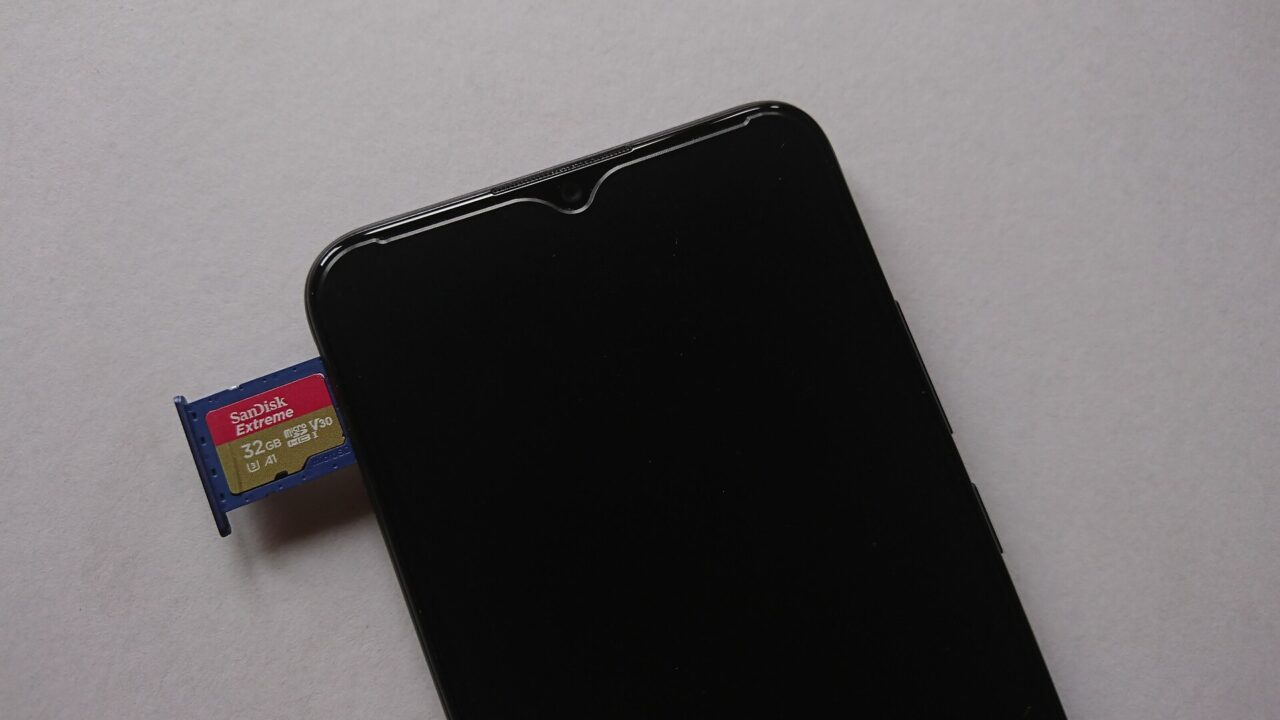
If your phone has a card slot, Android lets you set up the card in one of two ways. As portable storage, it can hold photos and videos but not apps. As internal storage, it can hold apps, but you can’t move the card to another device. Formatting a card permanently deletes what’s on it, so back up first.
What not to do
- Skip ‘cleaner’ and ‘RAM booster’ apps that promise to double your phone’s speed in one tap. Many ask for permissions they don’t need and are packed with ads, while Files by Google already handles junk files.
- Don’t keep closing apps to ‘save memory’. Google’s own help page says this is usually unnecessary; only force-stop an app that isn’t responding.
- Don’t manually delete system folders or games’ data folders that you don’t recognise in a file manager.
- Don’t factory reset just to gain space. The steps above are almost always enough.
Once you free up phone storage for games, a few more habits keep them running smoothly. See our guides to reduce lag in mobile games and stop your phone overheating while gaming. If you’re always short of space, our advice on how to choose a gaming phone will help with your next upgrade.
Frequently asked questions
What should I delete first when my phone is full?
The safest way to free up phone storage for games is to start with the Junk files card in Files by Google, old screen recordings, WhatsApp media and the phone copies of photos already backed up to Google Photos. After that, archive games you rarely play.
Will clearing the cache delete my game progress?
No. The cache is temporary data. Clear storage (or Clear data) is the option that erases everything, so make sure your progress is saved to the cloud before using it.
How do I get an archived game back?
Tap its icon on the home screen and it reinstalls. The app needs to be still available on Google Play, and you need enough free space.
Can I move games to an SD card?
Not if the card is set up as portable storage; that mode is for photos and videos. A card formatted as internal storage can hold apps, but it then works only in that phone.