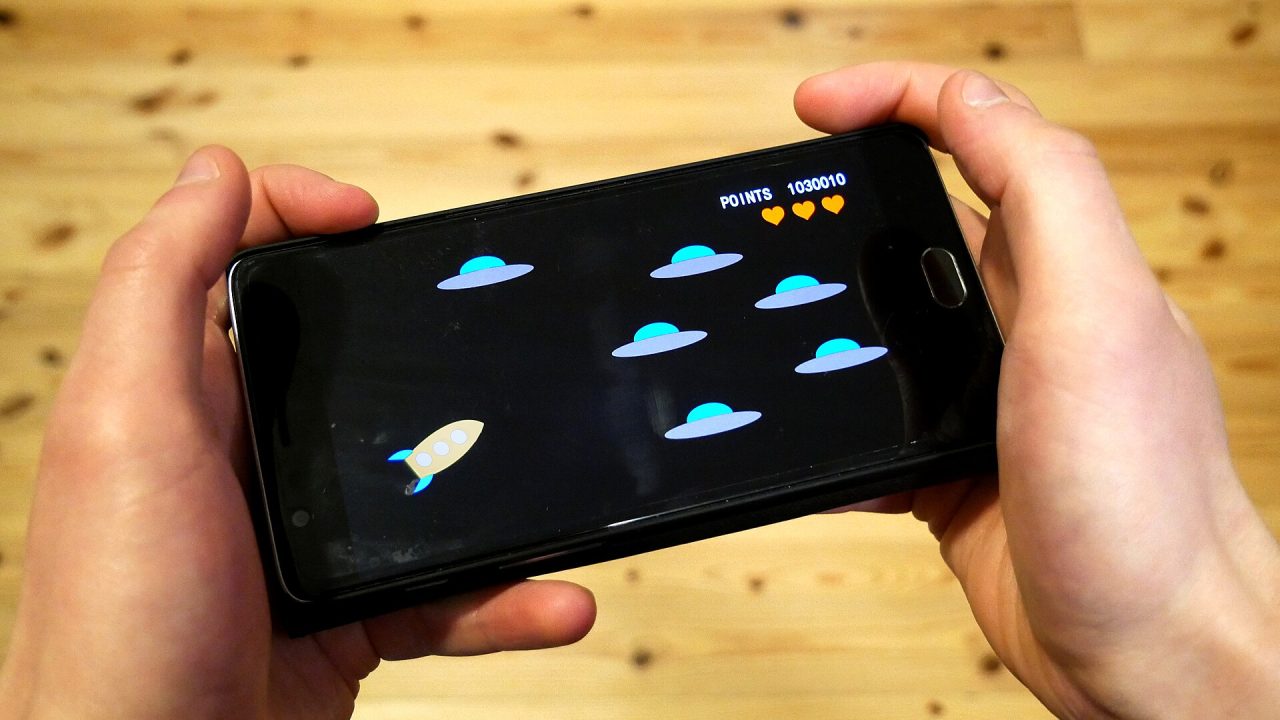
Recording a match and uploading it later is one thing. Going live means your viewers watch every clutch and every silly mistake as it happens, and they can talk to you in chat. If you want to stream mobile games on YouTube, there are two practical routes: straight from the YouTube app on your phone, or through a computer running free software such as OBS Studio. This guide covers both, with YouTube’s own requirements and numbers.
If you have not set up a channel yet, start with our guide to starting a gaming YouTube channel. And if you would rather post edited videos first, read how to record gameplay for YouTube with free tools. Menu names and rules below are as they were at the time of writing; YouTube changes them now and then, so check the linked Help pages before you go live.
Two ways to stream mobile games on YouTube
| YouTube app on the phone | PC with OBS + phone mirroring | |
|---|---|---|
| Subscriber requirement | At least 50 subscribers | None listed on YouTube’s encoder Help page |
| Extra hardware | None | A computer and a USB cable |
| Overlays, webcam, scenes | Basic | Full control |
| Best for | Quick, casual streams | Regular streams that look polished |
| Main limit | Viewer cap below 1,000 subscribers | More setup; Android works best |
Both routes need live streaming switched on for your channel first. YouTube says enabling it for the first time can take up to 24 hours, so do it a day before your planned stream, not ten minutes before.
Going live from the YouTube app: the requirements
According to YouTube Help, mobile live streaming needs all of the following at the time of writing:
- At least 50 subscribers on the channel.
- A verified channel (phone verification) with live streaming enabled.
- No live streaming restrictions on the channel in the last 90 days.
- An Android or iOS device on a supported OS version.
There is a catch for small channels. Between 50 and 999 subscribers, YouTube may limit how many people can watch your mobile stream, and the saved recording is private by default. YouTube says the limit can take several weeks to lift after you cross 1,000 subscribers. If you are 13 to 17, your mobile streams default to unlisted, though you can change the privacy for each stream.
Steps on Android
- Open the YouTube app and tap Create, then Live.
- Tap Edit to add a title, choose visibility and audience, or schedule the stream.
- Pick the Screencast option so viewers see your phone screen instead of the camera.
- Open your game, then return to the app and tap Go live. Tap Finish when you are done.
The app route is the simplest way to stream mobile games, but your phone does all the work: running the game, encoding video and uploading it. That heats the phone quickly. Our tips to stop your phone overheating while gaming matter even more during a long stream.
Streaming from a PC with OBS and phone mirroring
Streaming through a computer splits the load. The phone only runs the game; the PC captures its screen, adds your webcam, mic and overlays, and sends the stream to YouTube. YouTube’s Help page on encoder streaming does not list a subscriber minimum, which makes this the usual path for brand-new channels.
Mirroring an Android phone with scrcpy
The method we recommend is scrcpy, a free, open-source tool from Genymobile. It mirrors an Android phone’s screen on Windows, macOS or Linux over USB, with no root and no app left on the phone. Key requirements from its official page:
- Android 5.0 or later for video mirroring.
- Android 11 or later if you want the game audio forwarded to the PC.
- USB debugging switched on in the phone’s Developer options.
Download scrcpy only from its official GitHub page, never from a random mirror site. For iPhone, a free mirroring path like this is not as simple, so iPhone players usually stick with the YouTube app route.
Setting up OBS
- In YouTube Studio, click Create then Go live, open the Stream tab and copy your stream key. Treat it like a password.
- In OBS, open Settings → Stream, choose YouTube and either connect your account or paste the key.
- Add a Window Capture source and select the scrcpy window.
- Add your mic (and webcam if you use one), then check the audio meters.
- Click Start Streaming and confirm the preview in YouTube’s Live Control Room.
Settings and internet speed: YouTube’s own numbers
YouTube publishes recommended encoder settings. The table below shows its H.264 bitrate ranges (minimum to recommended), the codec most PCs handle well. Newer codecs such as AV1 and H.265 need less: YouTube lists 2 to 6 Mbps for 720p.
| Resolution and frame rate | H.264 bitrate (YouTube) |
|---|---|
| 720p at 30 or 60 fps | 3–8 Mbps |
| 1080p at 30 fps | 5–14 Mbps |
| 1080p at 60 fps | 6–17 Mbps |
- Keyframe interval: 2 seconds (YouTube says not to go above 4).
- Audio: AAC or MP3, 128 Kbps for stereo.
- Frame rate: up to 60 fps.
YouTube does not give one fixed internet speed. Instead, it asks you to run a speed test and check your upload speed, because upload is what carries your stream. Our advice: pick a bitrate that sits well below your measured upload, since home broadband and mobile data both dip at busy hours. If your upload is modest, 720p at 30 fps streamed smoothly beats 1080p that keeps buffering.
Playing an online game while streaming? Your ping and the stream share the same connection, so our checklist on how to reduce lag in mobile games helps here. A wired connection to the PC, or a phone close to the Wi-Fi router, makes a visible difference.
Tip: Run a short private test stream first. It shows whether your bitrate, sound levels and capture window all work before real viewers arrive.
Moderation and community guidelines
Once you stream mobile games regularly, chat becomes part of the show, and you are responsible for it. YouTube gives you these tools in Studio at the time of writing:
- Moderators: trusted viewers who can remove messages and time out users. Pick people you know well.
- Blocked words: a list that hides messages containing those words or close matches.
- Hold potentially inappropriate messages: set to Basic or Strict, then approve or hide what YouTube holds.
- Slow mode and subscribers-only chat to calm a busy or spammy chat.
- Timeout or hiding a user for repeat trouble-makers.
Live streams follow the same YouTube Community Guidelines as uploads, and breaking them can lead to live streaming restrictions. That matters because a restriction in the last 90 days blocks mobile streaming. Practical habits: keep personal details off screen, turn on Do Not Disturb so notifications and OTPs never pop up live, and avoid playing copyrighted music in the background.
A simple checklist before you go live
- Live streaming enabled at least a day earlier.
- Phone charged, cool and on Do Not Disturb.
- Upload speed tested; bitrate set comfortably below it.
- Title and thumbnail ready, chat filters and a moderator in place.
- A short test stream set to unlisted or private to check sound levels.
Start small: a one-hour stream of a game you know well, with a clear title. Watch the replay afterwards and fix one thing each time. That steady habit will do more for your channel than any expensive gear when you stream mobile games.
Frequently asked questions
How many subscribers do I need to live stream from my phone?
YouTube Help lists at least 50 subscribers for mobile live streaming at the time of writing. Below 1,000 subscribers, viewer numbers on mobile streams may be limited.
Can I stream mobile games with fewer than 50 subscribers?
Yes, through a computer. YouTube’s encoder streaming page does not list a subscriber minimum, so you can mirror your phone to a PC and stream with OBS. Live streaming still has to be enabled first.
What internet speed do I need?
YouTube does not set one figure. It recommends testing your upload speed and choosing a bitrate from its table, for example 3 to 8 Mbps for 720p with H.264. Keep the bitrate well below your measured upload.
Is my stream key safe to share?
No. Anyone with your stream key can broadcast to your channel. Never show it on screen or share it, and reset it in YouTube Studio if it leaks.