Phone games look great on a 6-inch screen, but some are even better on the family TV, with friends on the sofa and a controller in hand. There are several ways to play Android games on TV, and they are not equal: one is easy but adds delay, one is fast but depends on your phone’s hardware, and one skips the phone altogether. This guide compares them so you can pick the right one for your games and your setup.
Menu names below follow Google’s own help pages at the time of writing. Phone brands often rename things, so look for the closest match on your device.
Four ways to play Android games on TV
| Method | What you need | Delay (lag) | Best for |
|---|---|---|---|
| Screen casting (wireless) | Android 8.0 or later, a Google Cast device or TV with Google TV, same Wi-Fi | Noticeable | Puzzle, card and board games |
| USB-C to HDMI cable | A phone that supports video output over USB-C, a suitable cable | Low | Most games, including action |
| Games on Google TV / Android TV | A TV or streaming box with Google TV or Android TV, usually a controller | Lowest (runs on the TV) | Couch and party games |
| PC connected to the TV | A Windows PC running Google Play Games, an HDMI cable | Low | Supported Android games on a big screen |
Method 1: cast your phone screen to the TV
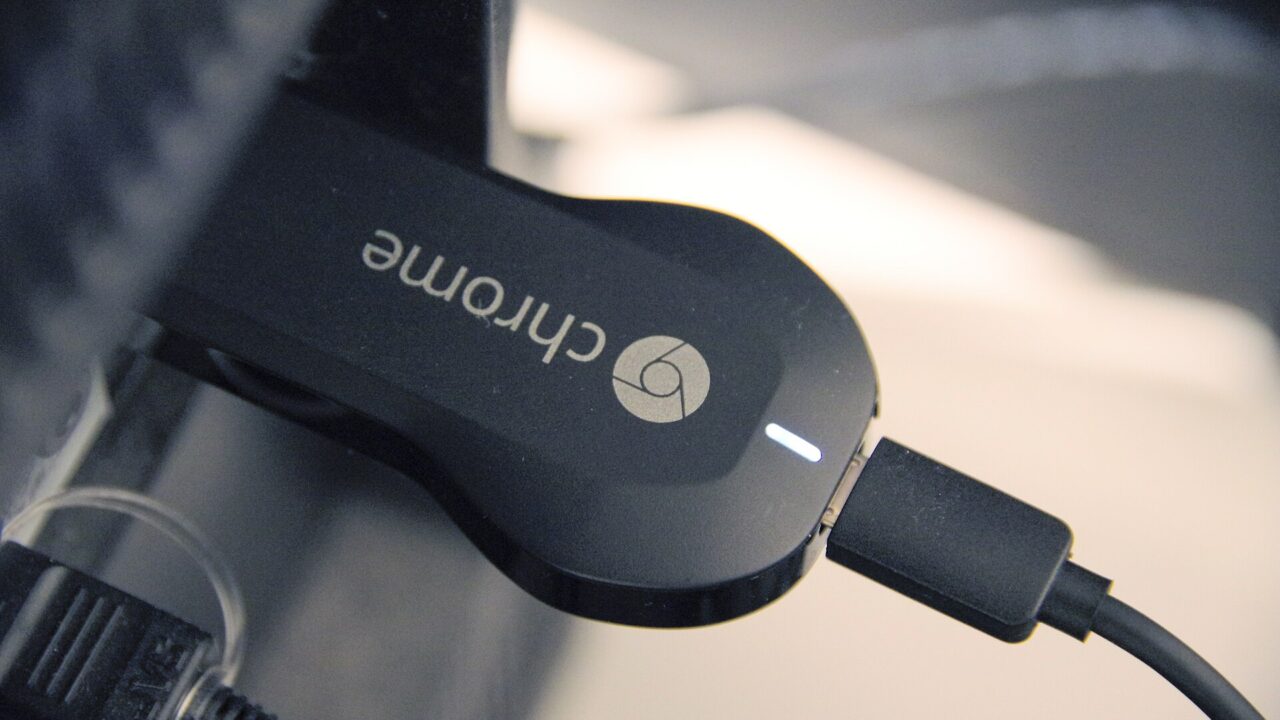
Screen casting mirrors everything on your phone to the TV over Wi-Fi. According to Google’s Chromecast help page, it needs Android 8.0 or later, and your phone and TV device must be on the same Wi-Fi network. Google’s steps are:
- Connect your phone to the same Wi-Fi as your Chromecast or Google TV device.
- Open the Google Home app and go to Favourites or Devices.
- Touch and hold the tile of your TV or streaming device.
- Tap Cast and choose to cast your screen (you may also be able to cast a single app).
- To finish, touch and hold the same tile and choose Stop mirroring.
Google’s page also says microphone permission must be on for Google Play services. Many phones add a Cast or Screen cast shortcut in Quick Settings too, though the name varies by brand.
Tip: Wireless mirroring always adds some delay between your touch and the picture on the TV. It is fine for Ludo, chess or puzzle games, but in our experience it feels sluggish in shooters and racing games.
Method 2: a USB-C to HDMI cable
A wired connection usually feels much more responsive than casting. The catch: your phone must support video output through its USB-C port. Wikipedia’s USB-C article explains that video uses an optional feature called Alternate Mode, and that devices are not required to support it. Many phones simply don’t.
- Check your phone’s official spec sheet for “DisplayPort”, “video output” or “HDMI out” before you buy anything.
- Buy a cable or adapter that clearly says it supports DisplayPort Alt Mode. A plain charging cable will not carry video.
- Choose an adapter with a charging port if you plan long sessions, so the battery doesn’t run down.
- Expect the TV to show the phone’s screen shape; some games show black bars on the sides.
If your phone doesn’t support video output, no adapter can add it. Skip to method 3 or 4 instead of buying cables that won’t work.
Method 3: install games on Google TV or Android TV
The smoothest way to play Android games on TV is often not to use the phone at all. If your TV or streaming box runs Google TV or Android TV, you can install games from the Play Store on the TV itself. The game runs on the TV hardware, so there is no casting delay. The trade-off is choice: the TV’s store mainly lists apps made for TV screens and remotes, so many phone games will not appear there.
Most TV games need a game controller. One good example is BombSquad: its Google Play listing says Android TV players need a compatible gamepad, or a phone running the free BombSquad Remote app. To pair a Bluetooth controller on Google TV, Google’s help page lists these steps:
- On the home screen, select your profile picture or initial, then Settings.
- Select Remote & Accessories, then Pair remote or accessory.
- Put your controller in pairing mode.
- Select the controller from the list and choose Pair on the pairing request.
Google notes you can connect several Bluetooth accessories, such as game controllers, but only one audio device at a time. If pairing fails, restart the controller, disconnect unused accessories and unplug the TV for about 10 seconds before trying again.
Method 4: Google Play Games on a PC connected to the TV
If you have a Windows laptop or PC, Google Play Games on PC runs a selection of Android games on Windows. Connect the PC to the TV with a normal HDMI cable and you get a big screen with keyboard, mouse or controller. Our guide to Google Play Games on PC covers the requirements and setup.
Reduce lag on the big screen
- Turn on your TV’s game mode: many TVs have a picture mode named Game or similar that cuts image processing. Check your TV’s manual.
- Use 5 GHz Wi-Fi for casting: keep the router close and avoid big downloads on the same network while you play.
- Prefer wired when you can: HDMI or a game installed on the TV beats wireless mirroring for fast games.
- Check the frame rate: our FPS, refresh rate and ping explainer helps you tell picture delay from network lag.
- Online games still need good ping: a big screen won’t fix a weak connection. See our tips to reduce lag in mobile games.
Which method should you choose?
For a quick family game of Ludo or UNO, casting is the easiest way to play Android games on TV. For action games, a USB-C to HDMI cable is the best choice if your phone supports it. For a regular couch-gaming setup, games installed on a Google TV device with a controller give the smoothest experience. And if you are still deciding between platforms, our comparison of PC, console and mobile gaming may help.
Frequently asked questions
Why is there a delay when I cast my phone to the TV?
Screen casting compresses and sends the picture over Wi-Fi, which adds a short delay. It is fine for slow games; for fast games use an HDMI connection or games installed on the TV.
Will any USB-C to HDMI cable work with my phone?
No. Your phone must support video output over USB-C (DisplayPort Alternate Mode), and the cable must support it too. Check your phone’s official specifications first.
Can I install my phone games on Google TV?
Only games that are made for TV appear in the TV’s Play Store. Many phone-only games are not available there.
Do I need a controller to play games on Google TV?
Most TV games expect a game controller. Google TV lets you pair Bluetooth controllers from Settings, Remote & Accessories.