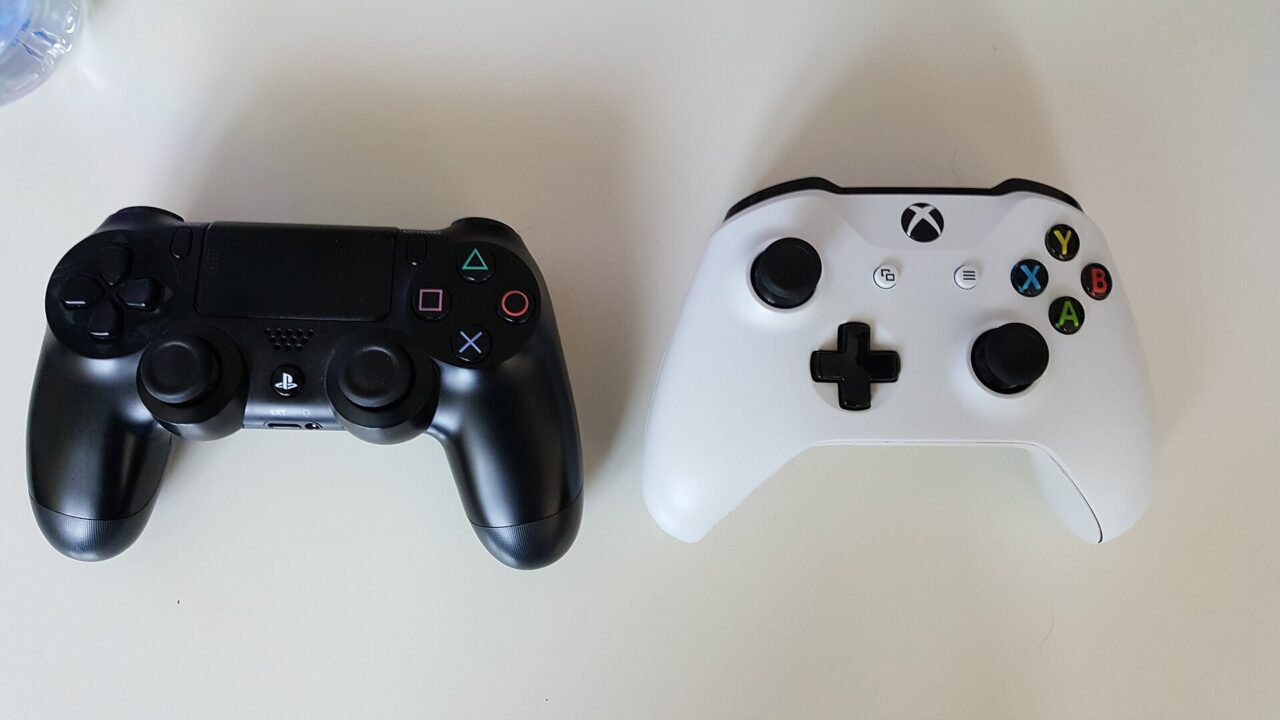
Touch controls are fine for quick games, but your thumbs cover half the screen and long sessions get tiring. A gamepad fixes both problems. This Bluetooth controller Android guide explains how to choose a controller, how to pair the popular PlayStation and Xbox pads with your phone, which games support controllers properly, why key-mapping apps need caution, and how to keep the battery going.
Steps below follow the official Google, Sony and Microsoft support pages at the time of writing. Phone brands sometimes rename menus, so look for the closest match on your device.
Bluetooth controller Android basics: picking the right pad
Android has built-in support for game controllers. Google’s developer documentation says most controllers follow one of three common styles, and games are tested against them:
| Style | What to know |
|---|---|
| Xbox style | Matches Android’s standard gamepad layout; triggers are labelled LT and RT |
| PlayStation style | Uses shape symbols on the face buttons instead of letters |
| Nintendo Switch style | A/B and X/Y labels are swapped, so the button marked B may act as A in a game |
Before you buy, check these points. They matter more than looks or RGB lighting:
- Android listed as supported on the box or the maker’s website.
- A phone clip or mount, unless you plan to play on a TV or tablet stand.
- Rechargeable battery and USB-C charging, so you aren’t buying AA cells every month.
- Comfort: hold it in a shop if you can; small hands may prefer compact pads.
- Buy from a trusted seller with a proper warranty; cheap copies of branded controllers often pair badly.
If you already own a PlayStation or Xbox controller, try it first. It may be all you need.
How to pair a Bluetooth controller with Android
The general method from Google’s Android Help works for most gamepads:
- Put the controller in pairing mode (see its manual).
- On your phone, swipe down from the top of the screen and touch and hold the Bluetooth icon.
- Tap Pair new device, then tap the controller’s name.
- Follow any on-screen prompts. The controller stays paired until you remove it.
PlayStation 5 DualSense
PlayStation Support says the DualSense needs Android 12 or later. Make sure the player light is off, then hold the Create button and the PS button together until the light bar blinks, and select the controller in your phone’s Bluetooth list. Sony notes that adaptive triggers, haptic feedback, the built-in mic and speaker, and the headset jack don’t work on mobile devices. You also need to pair again each time you switch the controller to another device.
Xbox Wireless Controller
Only Xbox controllers with Bluetooth can connect to a phone. Turn the controller on, then hold the Pair button until the Xbox button blinks quickly, which Xbox Support describes as the controller searching for a new device. Then pick it from your phone’s Bluetooth list. If your model isn’t listed, check Xbox Support for your controller’s revision.
Which games support a controller?
Once your Bluetooth controller Android pairing is done, the next question is the game itself, because it must also accept controller input. Support varies widely, and the Play Store doesn’t always say clearly. Some examples:
- Call of Duty: Mobile: when Activision announced controller support in 2019, it listed official DualShock 4 (except first-generation) and Xbox One controllers, an “Allow to use controller” setting, and matchmaking that puts controller players with other controller players. Check the game’s current settings, as support may have changed.
- Minecraft: the Bedrock Edition sold on mobile has built-in controller support, according to the Minecraft Wiki. Our Minecraft beginner guide helps with your first night.
- BombSquad: its Google Play listing says it supports touch screens and a variety of controllers.
- Games on Google Play Games for PC: on a Windows PC, many games work with a pad; see our Google Play Games on PC guide.
Tip: Quick test: after pairing, open the game’s settings and look for a Controller or Gamepad section. If there is none and the buttons do nothing, the game probably doesn’t support controllers.
Key-mapping apps: read this before you install one
When a game has no controller support, some people use key-mapping apps that turn button presses into fake screen taps. Be careful. In competitive shooters and battle royales, tools that change how you interact with the game can break the publisher’s fair-play rules, and the publisher decides what counts as cheating, not the app maker. Some of these apps also ask for wide permissions on your phone.
- Prefer games with official controller support.
- Read the game’s terms or support pages before using any mapping tool in online matches.
- Never use turbo, macro or auto-fire features. They give an unfair advantage and can get accounts banned.
- Install apps only from Google Play, never as APKs from websites. Our online gaming safety tips explain why.
Battery and connection tips
A controller adds one more battery to look after, and a weak battery is the most common reason a pad starts dropping inputs. These small habits keep your Bluetooth controller Android sessions smooth and your phone’s charge lasting longer:
- Turn the controller off after playing; many stay on for a while otherwise.
- Charge before long sessions and avoid leaving it at zero for weeks.
- Google suggests turning Bluetooth off when you are not using it, to save your phone’s battery.
- If the controller lags, move closer to the phone and disconnect Bluetooth devices you aren’t using. Wireless earphones plus a controller can be a lot for some phones; our gaming headphones guide explains Bluetooth audio delay.
- If online games still stutter, the cause is usually the network, not the pad. See our tips to reduce lag in mobile games.
Quick fixes when pairing fails
- Forget the controller in your phone’s Bluetooth settings and pair it again.
- Restart both the phone and the controller.
- Unpair the controller from your console or PC first; some pads only remember one device.
- Update the controller’s firmware using the maker’s official app or PC tool, if it has one.
Choose a comfortable pad, pair it once, and stick to games that support it officially. Used this way, a Bluetooth controller Android setup makes long sessions far more relaxed, with no risk to your account.
Frequently asked questions
Can I use a PS5 DualSense controller with an Android phone?
Yes, on Android 12 or later according to PlayStation Support. Adaptive triggers, haptic feedback, the mic, speaker and headset jack don’t work on mobile devices.
Does every Android game support controllers?
No. The game itself must support controller input. Check the game’s settings for a controller section, or its official support page.
Is using a key-mapping app cheating?
It depends on the game’s rules. In competitive online games, mapping tools, macros or turbo buttons can break fair-play rules and lead to bans. Use official controller support where possible.
Why does my controller keep disconnecting?
Common causes are low battery, distance, interference from other Bluetooth devices, or the phone idling. Charge the pad, stay close, and forget and re-pair it if the problem continues.