If you play games every day, at some point you wonder how they’re made. The good news: you can make your first mobile game with free tools and a normal laptop. The catch is that the first game must be small – much smaller than you think.
This roadmap walks you through choosing an engine, picking a realistic project, learning from official resources, finding legal art and sound, testing on a phone and publishing on Google Play.
Step 1: Pick a game engine
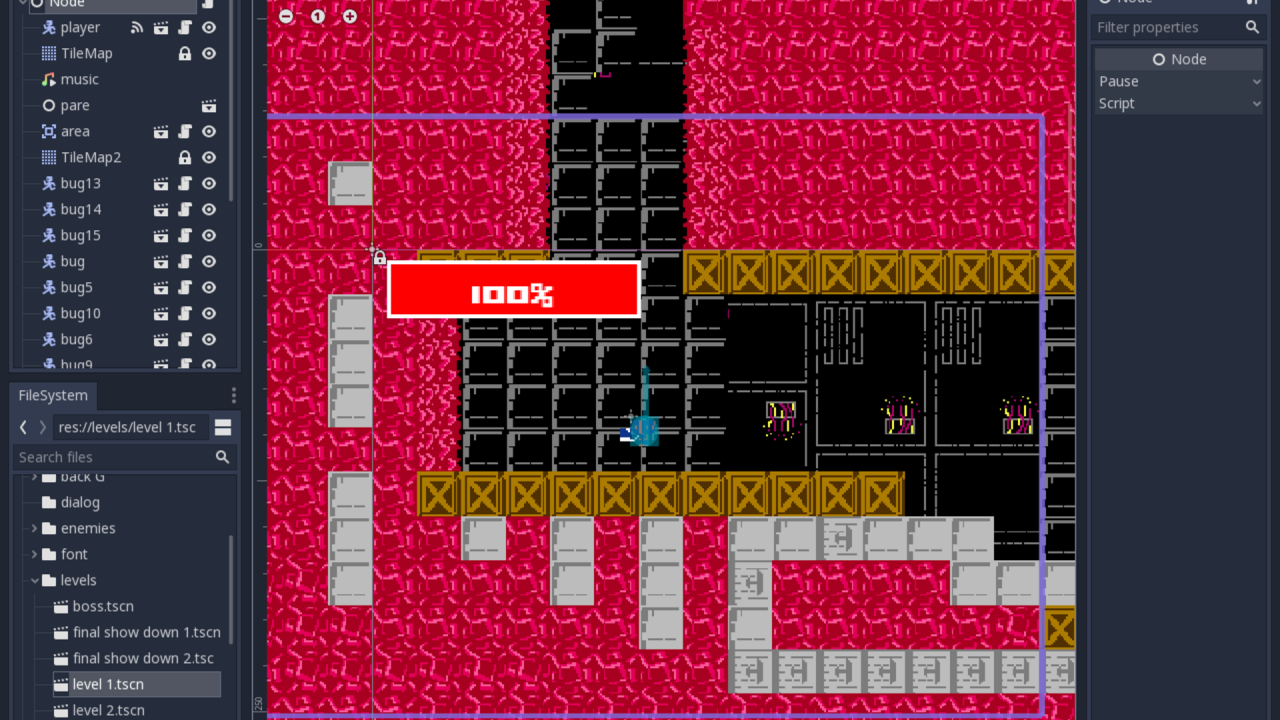
A game engine handles graphics, physics, input and exporting to Android or iOS, so you focus on the game itself. The three most popular choices are Unity, Godot and Unreal Engine. Licensing details below are from the official sites at the time of writing – always re-check before you publish.
| Engine | Main language | Cost basics (check official site) |
|---|---|---|
| Unity | C# | Unity Personal is free for individuals and companies with up to US$200,000 in revenue and funding; no runtime fee |
| Godot | GDScript (C# also supported) | Free and open source under the MIT licence; no royalties |
| Unreal Engine | C++ and Blueprints visual scripting | Free to start; 5% royalty applies on lifetime gross revenue above US$1 million per product |
Our pick for a first mobile game: Godot or Unity. Godot is lightweight and quick to download, which suits modest laptops. Unity has a huge number of tutorials and is widely used for mobile games. Unreal is powerful but heavier, and better suited once you have some experience or a strong PC.
Unity has also confirmed that its runtime fee was cancelled and that the splash screen is optional for Personal users with Unity 6. Godot’s terms are explained on its licence page – a credit in your game is the simple way to comply.
Step 2: Choose a tiny first project
Most beginners quit because their first idea is an open-world shooter. Pick something you can finish in two to four weeks. Finishing teaches you more than half-building something huge.
- Tap-to-jump runner – one button, obstacles, a score.
- Classic clones for practice – Pong, Snake or Breakout-style games teach movement, collisions and scoring.
- Simple puzzle – match-3 on a small grid, or a sliding tile puzzle.
- Endless dodger – tilt or swipe to avoid falling objects.
Pro tip: Write your game’s full feature list on one page before you start. If it doesn’t fit, cut features until it does.
Step 3: Learn from official resources
Start with each engine’s own beginner material – it is free, accurate and kept up to date with new versions.
- Unity: Unity Learn (learn.unity.com) has guided beginner pathways.
- Godot: the official documentation at docs.godotengine.org includes a “Your first 2D game” tutorial.
- Unreal: Epic’s documentation and the Epic Developer Community learning portal.
Follow one tutorial fully, then rebuild the same idea on your own with a small change. That second build is where real learning happens.
Step 4: Art and sound with free licensed assets
You don’t have to draw everything yourself. Many artists release free assets, but you must follow each licence. Never use sprites, music or characters ripped from commercial games – that can get your app removed.
A popular safe starting point is Kenney, whose game assets are public domain (CC0), so they can be used even in commercial projects. Other sites host assets under mixed licences, so read each item’s licence and keep a simple credits file listing every asset, its author and licence.
Step 5: Test on a real phone
The editor preview is not enough. Touch controls, screen sizes, notches and performance only show their real behaviour on a device.
- Enable Developer options and USB debugging on your Android phone (the steps vary by brand).
- Install the Android build tools your engine asks for, following its official export guide.
- Build and run on your own phone; test on an older or budget phone too if you can.
- Ask a few friends to play without your help and watch where they get confused.
Pro tip: Test with the phone in power-saving mode as well – many players use it, and it can expose frame-rate problems early.
Step 6: Publish on Google Play
To publish you need a Google Play Console developer account. According to Google’s help centre, there is a one-time registration fee of US$25, you must be at least 18, and you’ll go through identity verification.
If you create a personal developer account (created after 13 November 2023), Google requires a closed test with at least 12 testers who stay opted in continuously for at least 14 days before you can apply for production access. Plan for this – line up friends or classmates as testers early.
Store listing basics
- A clear app name, short and full description (no keyword stuffing).
- Icon, screenshots and a feature graphic you made or have rights to.
- A privacy policy if your game collects any data, including through ads or analytics SDKs.
- An honest Data safety form describing what your app collects.
Step 7: Complete the IARC age rating questionnaire
Every app on Google Play needs a content rating. You answer a questionnaire in Play Console about violence, language, in-app purchases, user interaction and similar content, and the International Age Rating Coalition (IARC) assigns ratings for different regions. Google says apps without a rating will be removed, and misrepresenting content can lead to suspension.
Answer truthfully, and update the questionnaire whenever you add features such as chat or purchases.
What comes after your first game
Expect few downloads at first – that is normal for a first release. The real win is that you’ve completed the whole cycle: idea, build, test, publish. Your second game will be faster and better.
Keep a short dev log, share progress clips with friends and players, and listen to feedback. Many solo developers started exactly this way – with one small, finished game.
Read also: Minecraft Beginner Guide: Survive Your First Day and Night · Gaming Terms Glossary: 60 Words Every Beginner Should Know
Frequently asked questions
Which engine is best to make your first mobile game?
For most beginners, Godot or Unity is the easiest start. Godot is free, open source and light; Unity has a very large tutorial library. Unreal suits experienced users with powerful PCs.
Do I need to know coding to make a mobile game?
Basic scripting helps a lot. Godot’s GDScript is beginner-friendly, and Unreal offers Blueprints visual scripting, but learning simple programming concepts will make everything easier.
How much does it cost to publish a game on Google Play?
Google Play Console charges a one-time US$25 registration fee at the time of writing. Check support.google.com for current details.
Why do I need 12 testers on Google Play?
Google requires new personal developer accounts created after 13 November 2023 to run a closed test with at least 12 testers opted in for 14 continuous days before applying for production access.
Can I use free assets in a game I sell?
Only if the asset’s licence allows commercial use. CC0 assets, like Kenney’s, can be used commercially; always read each licence and keep a credits list.